
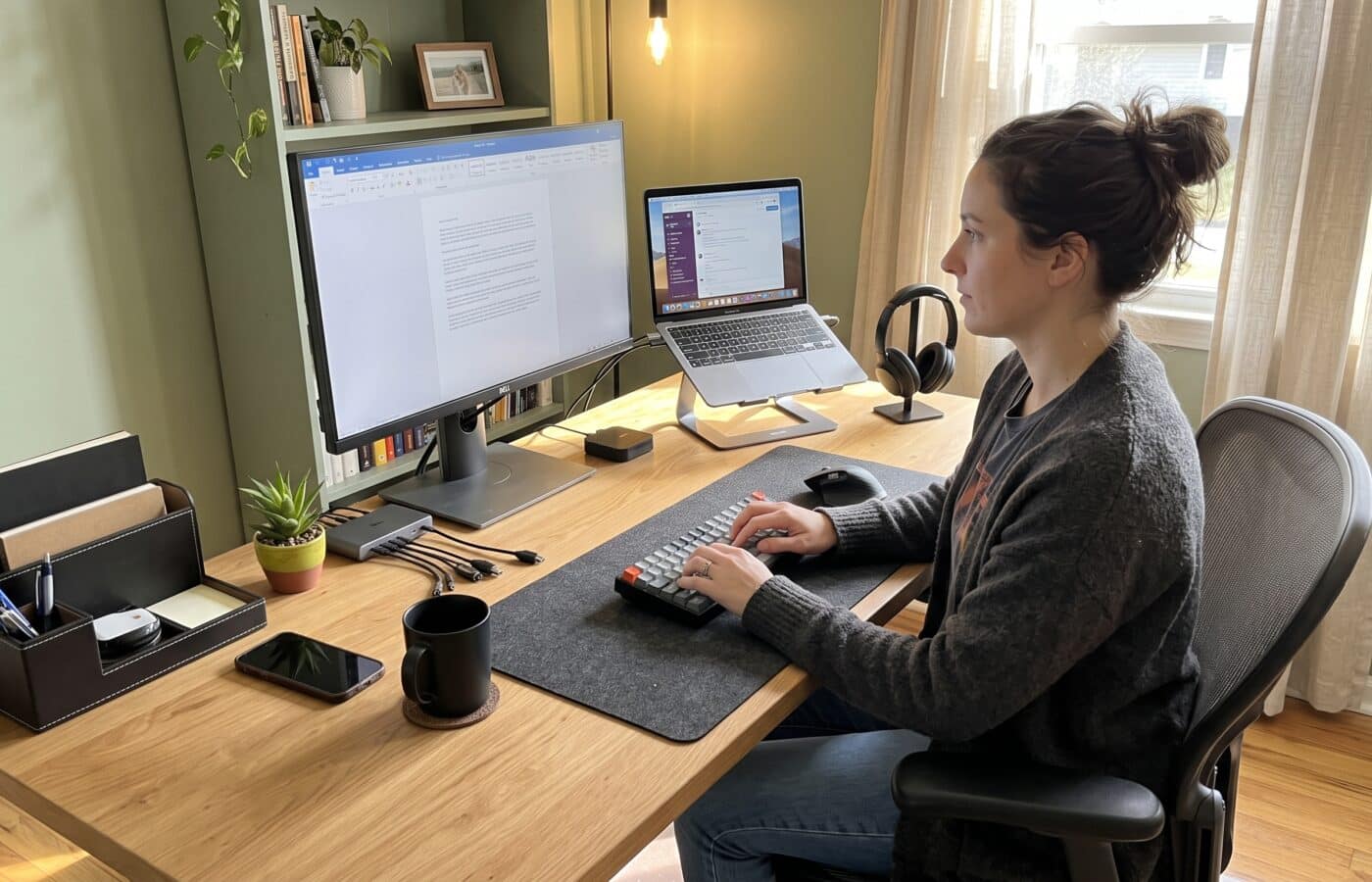
Home Office Setup Essentials: 12 Things Worth Buying

I have measured a lot of home offices over the years, and the questions people ask me about home office setup essentials barely change from one client to the next. My clients’ setups have included spare bedrooms, closets with the doors taken off, a corner of a garage, and more kitchen tables than I can count. The people who call me rarely have a furniture problem at first. They have a neck that aches by 3 p.m., a right shoulder that clicks, or eyes that feel like sandpaper by Thursday. Almost always, the cause traces back to a handful of purchases they either skipped, rushed, or got wrong.
So this is not a shopping list built from what looks good in a photo. These are the items I actually recommend to clients, in roughly the order I would buy them if the budget were tight. I will also tell you what to set up once each item arrives, because a great chair adjusted badly is just an expensive bad chair.
Home Office Setup Essentials Start With Movement, Not Perfect Posture
One thing before we start. There is no single perfect posture. Even OSHA’s own guidance on computer workstations makes the point that no one arrangement fits everyone, and that the goal is a workstation you can fit to yourself. The Cornell ergonomics group puts it another way: the best posture is the next one. Your body was built to move, and every item below should either support a good position or make it easier to change position. If a product does neither, it probably does not belong on your desk.
Why Home Office Setup Essentials Matter More Than Most People Think
In a corporate office, someone else usually chose the chair, set the desk height, and installed the lighting. Maybe not perfectly, but with some standard in mind. At home, you are the facilities department. Most people furnish a home office the way they furnish a living room, by eye, and that is where trouble starts.
The Weill Cornell Medicine environmental health and safety team notes plainly that every home workstation differs, so there is no uniform design that works for everyone working from home. That is exactly why buying the right home office setup essentials matters. Adjustable equipment is how you close the gap between a generic space and your particular body.
Here is the order I suggest: chair first, then desk height, then screen, then input devices, then environment. Fix the foundation before you fuss with the accessories.
1. An Adjustable Task Chair
If you buy only one thing from this list, buy this. The chair decides where your hips sit, and your hips decide where almost everything else ends up.
The Chair Is the Most Important of All Home Office Setup Essentials
OSHA describes a good chair as one that supports your back, legs, buttocks, and arms while cutting down on awkward postures and contact stress. In plain terms, here is what I look for when I test a chair with a client:
- Seat height adjustment that lets your feet rest flat with your thighs roughly level.
- Adjustable seat depth, either a sliding seat pan or enough room that you can fit two or three fingers between the front edge and the back of your knee.
- Lumbar support you can move up and down to meet the curve of your lower back, not someone else’s.
- A backrest that reclines and locks, or at least moves with you. Sitting slightly reclined, around 100 to 110 degrees, takes load off the spine compared to bolt upright.
- A five point base on casters for stability.
- Armrests that adjust in height, or that drop out of the way entirely.
Getting the Armrests and Fit Right
That last point is where most people go wrong. Armrests that sit too high push your shoulders toward your ears all day. Mayo Clinic’s guidance is to set them so your arms rest gently with your shoulders relaxed. If yours do not go low enough, lower them fully or remove them. I would rather see no armrests than armrests that hike your shoulders.
Also check the weight rating. OSHA’s purchasing checklist notes that most chairs are designed for users under 275 pounds, so larger users should look for a chair rated specifically for them.
Setup tip: Sit all the way back so your lower back touches the support. Most people perch on the front third of the seat, which means they paid for a backrest they never use.
2. A Desk at the Right Height
Standard manufactured desks tend to sit around 29 to 30 inches high. That height suits some people and is wrong for many others, especially shorter users who end up typing with their shoulders shrugged.
The rule I use is simple. With your chair set correctly and your shoulders relaxed, bend your elbows to roughly 90 degrees. Your keyboard surface should sit at or just below that elbow height. Mayo Clinic’s advice lines up with this: hands at or slightly below elbow level, wrists straight, upper arms close to the body.
If your desk is too high and cannot be changed, raise the chair and add a footrest (more on that below). For a desk that is too low, risers under the legs are a cheap fix.
Is a Sit and Stand Desk One of the Home Office Setup Essentials?
This is the most common question I get, so let me be honest about the evidence. A Cochrane review, which is about as rigorous as health research summaries get, found that sit and stand desks reduced workplace sitting by roughly 84 to 116 minutes a day in the short term. That is a real change in behavior. But Cochrane also notes the evidence quality is low, and that the actual health benefits of these desks remain uncertain.
My take: a height adjustable desk is worth buying if you will genuinely change positions through the day. It is not worth buying to stand rigidly for hours, which simply swaps one static posture for another. The value is in the switching, not the standing. If you buy one, pick a model with a quiet motor, memory presets, and a stable frame that does not wobble at standing height. Wobble will push you to stop using it.
3. A Footrest
This is the cheapest item on the list and one of the most overlooked. If your feet do not rest flat on the floor once the chair is at the right height for your desk, the edge of the seat presses into the back of your thighs and you start sliding forward.
Mayo Clinic recommends a footrest any time the chair is too high for your feet to rest flat, or the desk height forces the chair up. I prefer an adjustable, angled footrest because it lets your ankles move a little. Moving feet keep blood flowing.
What to skip: stacking old textbooks under the desk is fine as a test, but they slide around. Once you know the height that works, buy a proper one.
4. An External Monitor
Laptops are wonderful for portability and terrible for posture. The screen and keyboard are joined, so if the keyboard is at the right height the screen is too low, and if the screen is at the right height the keyboard is too high. You cannot win.
An external monitor fixes this. For size, the OSHA purchasing guide suggests the screen be large enough to read comfortably without taking over the desk. In my experience, a 24 to 27 inch display suits most home office desks.
How to Position Your Monitor
These are the setup tips I give every client:
- Distance. The American Optometric Association suggests a viewing distance of roughly 20 to 28 inches from eye to screen. An arm’s length is a good quick check.
- Height. The AOA recommends the center of the screen sit about 15 to 20 degrees below eye level, roughly 4 to 5 inches. Cornell’s ergonomics guidelines put the top of the monitor casing no more than 2 to 3 inches above eye level. Either way, your gaze should land slightly downward, never up.
- Position. Directly in front of you, behind the keyboard. Mayo Clinic is clear on this point.
- Bifocal and progressive lens wearers need the screen lower still, otherwise you will tilt your head back to read through the bottom of your lenses.
If you use two monitors equally, put the seam between them in front of your nose. When one is primary, center that one and place the second off to the side.
5. A Monitor Arm or Riser
Monitor stands that ship in the box rarely go high enough, or they go high enough but not low enough. A monitor arm gives you height, depth, and tilt control, and it frees up desk space. For a screen that only needs a few inches, a simple riser works too.
I put this as a separate purchase because I see so many clients with a decent monitor sitting at the wrong height. The monitor was the right buy. Its stand was the problem.
6. A Separate Keyboard
Once your laptop or monitor is up where your eyes need it, your hands need their own surface. A separate keyboard is non negotiable for anyone working at a desk for more than an hour or two a day.
What I look for:
- A low profile design, so your wrists do not have to bend upward to reach the keys.
- Flat or slightly negative tilt. Those little feet on the back of most keyboards tilt the keys toward you, which bends your wrists back. Cornell’s research group recommends a negative tilt keyboard tray for this reason. At minimum, fold the feet away.
- A compact or tenkeyless layout if you rarely use the number pad. A shorter keyboard lets your mouse sit closer to your body, which helps the shoulder.
Split and tented keyboards can help people with wrist or forearm discomfort, as OSHA notes that split designs support more neutral wrist postures. They take a week or two to get used to, though, so do not judge one on day one.
7. A Mouse That Fits Your Hand
Mouse size matters more than mouse brand. A mouse that is too small makes you claw your fingers. One that is too large makes you stretch. Hold a few in a store if you can.
Mayo Clinic advises placing the mouse within easy reach on the same surface as the keyboard, and even switching it to your other hand now and then to share the load. I would add one thing: if your forearm or wrist complains, try a vertical mouse, which holds your hand in a handshake position instead of palm down. It takes some adjustment but many of my clients swear by them.
A note on wrist rests: they are meant for resting during pauses, not for planting your wrist while you type or mouse. Pressing on a wrist rest while moving puts pressure right over the structures you are trying to protect. Use your arm to move the mouse, not just your wrist.
8. A Laptop Stand (If You Work Mainly on a Laptop)
If a full monitor is not practical, a laptop stand plus a separate keyboard and mouse gets you most of the way there. The stand raises the screen toward eye level, and the external keyboard and mouse stay down at elbow height.
Look for a stand that is stable and adjustable in height. Folding stands are great if you move around the house or travel. OSHA states that if a laptop is your main computer, it should be set up following the same ergonomic principles as a desktop. A stand is how you make that happen.
9. Proper Task Lighting
Lighting is the item people forget, and then wonder why their eyes are tired at the end of the day. Two things go wrong at home: too much light from a window behind or in front of the screen, and too little light in the evening.
Harvard’s environmental health and safety team suggests sitting perpendicular to a window, or closing blinds, to cut glare. If your space is dim, they recommend task lighting placed so it does not shine into your screen. Mayo Clinic gives similar advice: keep the brightest light source off to the side of the monitor.
What to buy: a desk lamp with an adjustable arm and a dimmer, ideally with adjustable color temperature. Point it at your work surface or papers, not at the screen and not at your face. The American Academy of Ophthalmology notes that your eyes can strain when the screen is much brighter than the room around it, so the goal is balance. Bright screen in a dark room is a recipe for headaches.
A small bonus: good side lighting also makes you look far better on video calls than overhead lighting does.
10. A Headset
If you spend a meaningful part of the day on calls, a headset belongs on your list of home office setup essentials. Every ergonomics guide I respect, from Mayo Clinic to OSHA, warns against cradling a phone between your ear and shoulder. It is one of the fastest ways I know to create neck pain.
A headset also keeps your hands free for notes, which stops you from leaning or twisting toward a phone on the desk. Choose one that is light and comfortable enough to wear for an hour. If it pinches after twenty minutes, you will stop wearing it, and then it did not help.
11. A Document Holder
This one sounds old fashioned, but if you work from paper, such as invoices, drawings, printed drafts, or reference sheets, it earns its place. Without one, papers end up flat on the desk beside the keyboard, and you spend hours turning your head down and to the side.
OSHA points out that a document holder keeps printed material close to both you and the monitor. Cornell’s guidance goes further and suggests placing it in line with the screen, either between the keyboard and monitor or right beside the screen at the same height and distance. Same height and distance is the key, because it means your eyes refocus less and your neck turns less.
12. An Anti Fatigue Mat (If You Stand)
If you bought a height adjustable desk, buy a mat with it. Standing on hard flooring or thin carpet for long stretches tires your legs and feet quickly, and tired people sit back down and leave the desk at sitting height forever.
Pick a mat with beveled edges so you do not trip on it, and keep it clear of where the chair casters roll. Wear supportive shoes or go barefoot on the mat, and keep shifting your weight. Remember the point from earlier: standing helps because it creates variety, not because standing is magic.
Three Things to Skip When Buying Home Office Setup Essentials
Part of being honest about what you need is telling you where not to spend money.
Blue light glasses for eye strain. The American Academy of Ophthalmology has said that blue light from screens is not what causes digital eye strain, and that special blue blocking glasses are not necessary for computer use. What causes the strain is how we use screens, mostly long stretches of close focus with less blinking. Spend that money on a better lamp or a larger monitor instead.
Exercise balls as chairs. They feel active, but they offer no back support, no armrests, and no height adjustment. Most people end up slumped on them within half an hour. Use one for a short break if you enjoy it, not as your main seat.
Gadgets that promise perfect posture. Posture correcting straps and vibrating sensors can raise awareness for a few days, but they do not fix a desk that is too high or a monitor that is too low. Fix the environment first.
Small Home Office Setup Essentials People Forget
Some of the most helpful changes cost little or nothing.
Cable management. A power strip with surge protection and a few cable clips keep cords off the floor and out of walkways. Tripping over a charger cable is a home office injury nobody plans for.
A small humidifier. The AAO suggests a desktop humidifier or artificial tears if your eyes feel dry, especially when heating or air conditioning runs all day.
Break reminders. Your phone or computer can already do this for free. The AAO recommends what is often called the 20/20/20 rule: every 20 minutes, look at something about 20 feet away for 20 seconds. Their reasoning is that we blink far less while staring at screens, roughly half as often by their estimate, which dries the eyes. Cornell’s guidelines also recommend frequent microbreaks, short pauses of a minute or so, rather than one long break at lunch.
How to Put Your Home Office Setup Essentials Together
When everything arrives, set it up in this order. Each step depends on the one before it.
- Chair. Adjust seat height, depth, lumbar support, and armrests. Sit back into it.
- Desk and keyboard height. Elbows near 90 degrees, shoulders relaxed, hands at or slightly below elbow level.
- Feet. If they do not rest flat, add the footrest.
- Monitor. Directly in front, about an arm’s length away, with your gaze landing slightly downward.
- Mouse. Right next to the keyboard, on the same surface.
- Lighting. Brightest light to the side of the screen, lamp on your work area.
- Accessories. Headset, document holder, and mat where they apply.
Test Your Home Office Setup Essentials for One Week
Then live with it for a week and pay attention. Where do you feel tension at the end of the day? Neck pain usually points to monitor height or a document position. Tight shoulders often trace back to armrests or desk height. For wrists, look at keyboard tilt or mouse size. Lower back discomfort tends to come from lumbar support, or from sitting forward on the chair.
Small adjustments over several days beat one big overhaul. Mayo Clinic Health System makes the same point I make to every client: even a perfectly arranged workstation will not protect you if you sit still all day. Change position, stand up, walk to refill your water, stretch your hands. A few minutes of stretching also fits easily into a morning routine before you sit down for the day.
Final Thoughts on Home Office Setup Essentials
The best home office I ever assessed was not the most expensive. It belonged to a freelance bookkeeper who had a secondhand adjustable chair, a desk she raised with furniture risers, a monitor on a stack of hardcover books, and a lamp she bought at a thrift store. Every single item was set to her body. She had no complaints, and she had been working there for six years.
That is the real lesson behind these home office setup essentials. Buy adjustable things, adjust them to you, and keep moving. The equipment is the easy part. Your habits are what keep you comfortable, and productive working from home, for the long run.
If discomfort persists after you have made these changes, or if you feel numbness, tingling, or pain that wakes you at night, please see a physician or physical therapist. Good equipment supports a healthy body. It does not replace proper care.
Frequently Asked Questions About Home Office Setup Essentials
What are the most important home office setup essentials?
Start with an adjustable chair, a desk at the correct height, and a monitor positioned at eye level or slightly below. Those three items control your posture more than anything else. OSHA’s Computer Workstations eTool breaks down how each component affects your body.
How far should my monitor be from my eyes?
About an arm’s length, or roughly 20 to 28 inches, according to the American Optometric Association. The center of the screen should sit about 4 to 5 inches below eye level. See the AOA’s tips summarized by IndustryWeek.
Is a standing desk worth the money?
It can be, if you actually switch between sitting and standing through the day. A Cochrane review found these desks reduce sitting time, though evidence on long term health benefits is still limited.
Do I need blue light glasses for working at a computer?
The American Academy of Ophthalmology says no. Eye strain comes from long periods of screen use and reduced blinking, not blue light. Regular breaks help more. Read more at HealthDay.
Where should I put my desk in relation to a window?
Sideways to it. Facing a window or sitting with it behind you creates glare on your screen or in your eyes. Harvard’s Remote Work Ergonomics Fact Sheet recommends sitting perpendicular to windows or closing the blinds.
Can I work from a laptop all day without problems?
Only if you separate the screen from the keyboard. Use a laptop stand to raise the screen and an external keyboard and mouse at elbow height. Mayo Clinic’s home office ergonomics tips cover the ideal hand and screen positions.
How often should I take breaks from my desk?
Short and often works best. Look away from your screen every 20 minutes, and stand or move for a minute or two several times an hour. Cornell’s ergonomic workstation tips recommend frequent microbreaks.
References
- Occupational Safety and Health Administration. Computer Workstations eTool: Workstation Components.
- Mayo Clinic News Network. Home Office Ergonomics Tips.
- Mayo Clinic Health System. 5 Tips for Setting Up Your Home Workspace.
- Cornell University Ergonomics Web. 12 Tips for an Ergonomic Computer Workstation.
- Cochrane. Workplace Interventions for Reducing Sitting at Work.
- Harvard University Environmental Health and Safety. Remote Work Ergonomics Fact Sheet.
- HealthDay. Screens Are Everywhere: Resolve to Protect Your Vision.
- Safety+Health Magazine. Academy Shares Tips on Eyestrain.
- IndustryWeek. Most Americans Experience Digital Eye Strain from Overexposure to Computers.
- Weill Cornell Medicine Environmental Health and Safety. Ergonomics in the Home Office.