
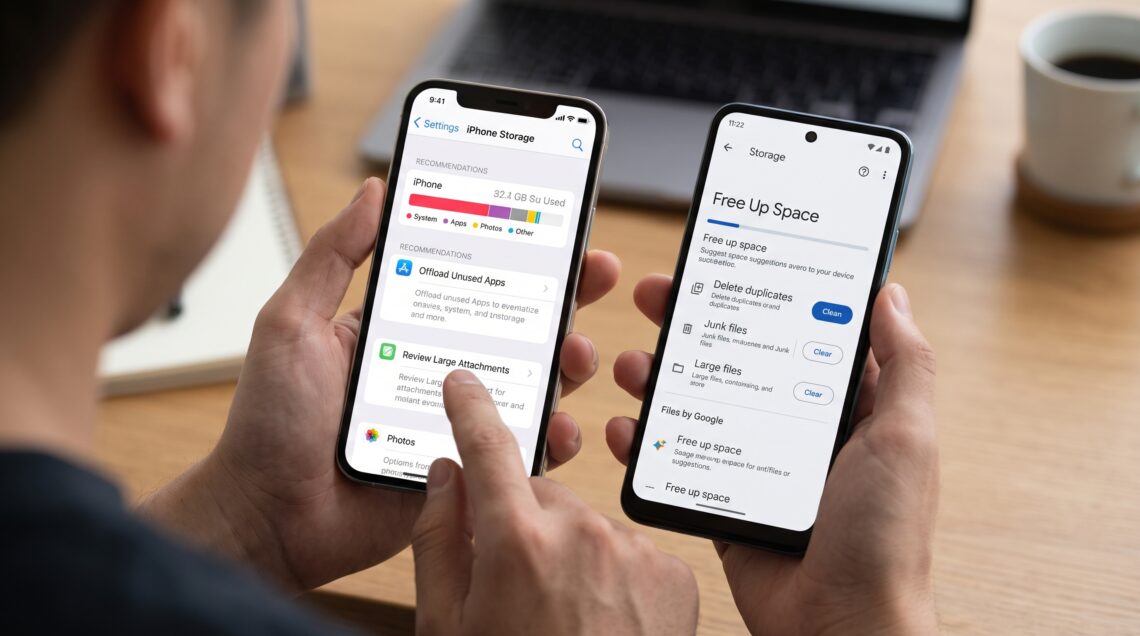
How to Free Up Storage on Your Phone (iPhone and Android)
Almost every week, someone walks up to my support desk, slides a phone across to me and asks how to free up storage on their phone, usually with the same complaint: “It says storage is full and I didn’t download anything.” Then I open the storage screen and find 40 GB of video from a kid’s recital, three years of group chat memes, a podcast app holding 200 episodes nobody will ever play, and a navigation app with offline maps of a country they visited once in 2022.
People don’t usually lose storage to one big thing. It goes slowly, a little at a time, through a lot of small things nobody notices. The fix isn’t magic either. It just takes some order.
After years of repairing, setting up and cleaning out phones for staff, clients and family, I’ve settled on a routine to free up storage on a phone safely without wiping out anything that matters. This guide walks through that routine for both iPhone and Android, in the order I actually work through it at the bench.
Before You Free Up Storage on Your Phone, Check the Storage Screen
The biggest mistake I see is people deleting at random. They remove a few apps they like, take out some photos, and still get the warning the next day because the real problem was sitting somewhere else. Before you try to free up storage on your phone, find out what’s actually eating the space.
Checking Storage on iPhone
Open Settings, tap General, then tap iPhone Storage. Give it a few seconds to finish calculating. Along the top you’ll see a colored bar split into categories like Apps, Photos, Media, Messages, iOS and System Data. Below that is a list of recommendations, and below that, every app on the phone sorted by how much space it takes, biggest first.
Checking Storage on Android
On most Android phones, open Settings and tap Storage. You’ll get a breakdown by category: Apps, Images, Videos, Audio, Documents, System and so on. Tapping a category shows you what’s inside it.
On Samsung Galaxy phones, the path is a bit different. Open Settings, tap Device care (on some versions it’s called Battery and device care), and then tap Storage. Samsung groups your files by type and also shows suggestions like Trash, Unused apps, Duplicate files and Large files.
Take a minute and actually read this screen. Write down the top three categories. Nine times out of ten, the answer is obvious once you look: photos and video, a messaging app, or one or two heavy apps. That’s where the effort should go.
Why You Keep Needing to Free Up Storage on Your Phone
It helps to understand where the space goes, because once you know the culprits, you stop feeding them.
Video is the heavyweight. Modern phones record in very high resolution by default on a lot of models. A single minute of 4K video at 60 frames per second can easily take several hundred megabytes. Record a few long clips at a concert or a birthday party and you’ve filled a big chunk of a 128 GB phone without thinking about it.
Messaging apps quietly hoard media. WhatsApp, Telegram, Viber, Messenger and iMessage all keep copies of every photo, voice note, sticker and video people send you. Family group chats are the worst offenders I see. One client had over 18 GB in WhatsApp alone, almost all of it forwarded videos.
Cache builds up over time. Apps store temporary data so they load faster. Social media apps, browsers and streaming apps are known for letting this grow into gigabytes.
Offline downloads get forgotten. Netflix episodes, Spotify playlists, YouTube downloads, podcast episodes and offline map regions all sit on the phone until you remove them.
System data grows on its own. Both iOS and Android set aside space for the operating system, update files, logs and caches the system manages itself. You can’t delete most of it directly, but it does shrink when the phone has room to breathe.
How to Free Up Storage on Your Phone: iPhone Steps
Follow the Recommendations First
Back on the iPhone Storage screen, Apple lists recommendations made for your specific phone. These change depending on what’s on the device, so yours may not match a friend’s. Common ones include offloading unused apps, reviewing large attachments in Messages, emptying the Recently Deleted album and reviewing downloaded videos. Each one shows an estimate of how much space you’d get back. I always start here because it’s the quickest way to free up storage on an Apple phone and see what will make a real difference.
Offload Apps to Free Up Phone Storage Without Losing Data
This is the iPhone feature I recommend most, and the one fewest people know about. Offloading removes the app itself but keeps your documents and data on the phone. The icon stays on your home screen with a small cloud symbol next to it. Tap it later and the app reinstalls with everything just as you left it.
To offload a single app, go to Settings, General, iPhone Storage, tap the app, and choose Offload App. To have the phone do it automatically when space runs low, go to Settings, then Apps, then App Store, and turn on Offload Unused Apps. On older iOS versions this setting sits directly under the App Store or iTunes and App Store section in Settings.
Look at the apps list and be honest with yourself. That 4 GB game you haven’t opened since spring, the airline app for a trip that’s over, the photo editor you tried once. Offload them. Nothing is lost.
One warning from experience: offloading needs an internet connection to bring the app back, and if a developer pulls an app from the App Store, you may not be able to reinstall it. If an app is no longer available, keep it installed.
Free Up Phone Storage Taken by Photos and Videos
For most iPhone users, the Photos library is the biggest single category. You have a few options, and none of them require throwing away memories.
Turn on Optimize iPhone Storage. If you use iCloud Photos, go to Settings, then Apps, then Photos (or Settings, then Photos on older versions) and select Optimize iPhone Storage. The phone keeps smaller versions on the device and stores the full resolution originals in iCloud. When you open a photo, it downloads the full version as needed. On a large library, this one setting can free up storage on your phone by tens of gigabytes.
The catch is iCloud space. Apple only gives you 5 GB free, which isn’t enough for most photo libraries. If your library is large, you’ll need a paid iCloud+ plan or another backup service like Google Photos. I always tell people to check that their photos are actually backed up somewhere before they change anything.
Empty Recently Deleted. When you delete a photo on iPhone, it isn’t gone yet. It moves to the Recently Deleted album and stays there for up to 30 days. I’ve seen people delete 2,000 photos to clear space and get nothing back, because they never emptied this album. Open Photos, scroll to Utilities, open Recently Deleted, authenticate with Face ID or your passcode, and choose Delete All.
Hunt down the big videos. In Photos, open the Media Types section and tap Videos. Long clips, screen recordings and accidental recordings of the inside of your pocket are usually the biggest wins. Delete what you don’t need, then empty Recently Deleted again.
Clean up duplicates. Recent iOS versions include a Duplicates album under Utilities. It finds identical shots and lets you merge them in one tap.
Trim Messages
Messages can grow huge, especially if you’ve had the same phone number and Apple account for years.
Go to Settings, then Apps, then Messages, and find Keep Messages. The default is Forever. Switching it to 1 Year or 30 Days will delete older conversations and their attachments automatically. Think carefully before doing this, because those messages are gone once removed. If you use Messages in iCloud, deleting on one device deletes on all of them.
A gentler approach is reviewing large attachments. In iPhone Storage, tap Messages and you’ll see categories like Photos, Videos, GIFs and Stickers, and Top Conversations. Open Videos, swipe left on what you don’t need, and delete. You keep the conversation text and lose only the heavy media.
Clear Out Downloads and Offline Content
Check these apps one by one, because the phone won’t remove their content for you:
- Streaming video apps like Netflix, Disney Plus, Prime Video and YouTube. Go to the Downloads section and remove anything you’ve already watched.
- Music apps. In Apple Music, tap and hold a downloaded album or playlist and choose Remove, then Remove Download. In Spotify, toggle off the download switch on playlists you don’t listen to offline.
- Podcasts. In the Apple Podcasts app, go into settings and limit how many episodes it keeps. Many people have it set to keep everything.
- Maps. If you’ve saved offline areas in Google Maps or Apple Maps, delete the ones you no longer need.
- Safari. Offline Reading List items take space too. Go to Settings, Apps, Safari and turn off automatic offline saving, or clear the list.
About System Data
System Data (once labeled “Other”) confuses more iPhone owners than anything else. It covers caches, logs, temporary files and resources the system manages. You can’t select it and delete it, but a few things help. Restart the phone, because a reboot clears some temporary files. Make sure iOS is up to date. Clear Safari history and website data in Settings, Apps, Safari. And free up storage in other categories on the phone, because iOS clears more of its own caches when it isn’t under pressure.
If System Data stays huge after all of this, say 30 GB or more on a phone that’s otherwise clean, back up the phone and consider erasing and restoring it. That’s the last thing I try, not the first.
How to Free Up Storage on Your Phone: Android Steps
Android differs a lot between manufacturers, so menu names may not match exactly on your phone. The ideas for how to free up storage on an Android phone are the same everywhere.
Use the Built In Tool to Free Up Storage on Your Phone
On Pixel phones and many others, open Settings, tap Storage, then tap Free up space. This usually opens Files by Google, which I install on almost every Android phone I support, even ones that didn’t come with it.
Open Files by Google and tap Clean (sometimes labeled Clean up). It scans the device and groups suggestions into cards: junk files, duplicate files, old screenshots, large files, downloaded files, photos already backed up and apps you rarely use. Go through each card, review what’s selected, and confirm. Don’t tap select all on everything without looking. I’ve watched people delete important PDFs from their Downloads folder because they rushed.
When you’re done, open the menu in Files and empty the Trash. Deleted files sit there for a while, just like on iPhone, and they still count against your storage until you clear them.
Let Google Photos Remove What’s Already Backed Up
If you use Google Photos with backup turned on, your photos and videos are already stored in your Google account. The copies on the phone are duplicates. Open Google Photos, tap your profile picture in the top corner, and choose Free up space on this device. It deletes only the local copies of items that have been safely backed up, which makes it one of the fastest ways to free up storage on a phone full of pictures.
Before you tap that button, open a few older photos in Google Photos on a computer and confirm they’re really there. Also remember Google’s free 15 GB is shared between Gmail, Google Drive and Google Photos. If your account is full, new photos may not be backing up at all. You’ll see a warning in the Photos app if that’s the case.
Clear Cache, Carefully
On Android, you can clear the cache for individual apps. Go to Settings, Apps, choose an app, tap Storage (or Storage and cache), and tap Clear cache. Chrome, Instagram, TikTok, Facebook and YouTube are usually the biggest offenders.
Pay close attention to the two buttons on that screen. Clear cache removes temporary data and is safe. The app may just be slower the first time you open it again. Clear storage (or Clear data) wipes everything the app has saved, including logins, settings, and in some cases offline content or unsynced data. Only use Clear storage if you know exactly what you’re giving up.
I also want to be clear that clearing cache is a short term fix. Apps rebuild it as you use them. It’s worth doing when you’re in a pinch, but it won’t solve a phone that’s chronically full.
Archive Apps You Rarely Use
Newer Android versions have an archiving feature that works much like offloading on iPhone. It removes most of the app while keeping your data, and the icon stays so you can restore it with a tap. Depending on your phone, you’ll find an Archive option on the app’s info page under Settings, Apps. The Google Play Store also has a setting to archive unused apps automatically when space runs low. Look in the Play Store settings under General.
Free Up Storage on a Samsung Galaxy Phone
Samsung phones have their own tools that are worth using:
- Device care storage cleanup. Go to Settings, then Device care (or Battery and device care), then Storage. Work through Trash, Unused apps, Duplicate files and Large files.
- Empty the Gallery trash. Samsung’s Gallery app has its own Recycle bin, separate from My Files. Open Gallery, tap the menu, open Recycle bin and empty it. I regularly find several gigabytes sitting there.
- Check My Files trash too. Open My Files, tap the menu and look for Trash or Recycle bin.
- Optimize now. On the main Device care screen, the Optimize now button clears cached and residual files and closes background apps. It’s quick and harmless.
Use a microSD Card If Your Phone Has a Slot
Fewer phones support memory cards every year, and most current flagships, including recent Galaxy S models, have dropped the slot entirely. But if your phone has one, a good quality microSD card is the cheapest storage upgrade available. Set the camera to save photos and videos to the card, and move music and downloaded files there. Buy from a reputable brand and seller. Counterfeit cards that report fake capacity are common, and I’ve seen them corrupt entire photo libraries.
Free Up Phone Storage Hidden in Messaging Apps
I’m giving this its own section because messaging apps are, in my experience, the most underestimated storage drain on phones today. Cleaning them out is often the single biggest step when someone asks me how to free up storage on their phone.
Cleaning Up WhatsApp
Open WhatsApp, go to Settings, then Storage and data, then Manage storage. You’ll see files larger than 5 MB, files forwarded many times, and a list of chats sorted by size. Open the biggest chat, select the large videos and delete them. Then go back to Storage and data and change Media auto download so photos, audio and video only download when you choose, or only over WiFi. That single change prevents the problem from coming back.
Cleaning Up Telegram and Other Apps
In Telegram, go to Settings, then Data and Storage, then Storage Usage. You can clear the cache and set a maximum cache size and how long media stays on the device. Because Telegram keeps your media in its cloud, clearing the local cache doesn’t delete anything permanently.
Facebook Messenger, Viber and others have similar settings tucked into their storage or data sections. Spend five minutes in each one you use.
A Straight Talk About Cloud Storage
Cloud storage is the best way to keep everything and still free up storage on your phone, but people often misunderstand it. If you’re not sure what “the cloud” actually is, this plain guide to what cloud computing is explains it.
Syncing Is Not Always a Backup
With iCloud Photos and Google Photos, if you delete a photo from the phone while sync is on, it can delete from the cloud too. Google’s Free up space feature is designed to remove only local copies, and iPhone’s Optimize setting keeps the originals in iCloud. But manually deleting from the Photos or Gallery app usually removes it everywhere. Read what each option does before tapping.
Free Tiers Are Small
Apple gives 5 GB with every account. Google gives 15 GB shared across its services. Samsung, Microsoft OneDrive and Dropbox all offer their own plans. For most households with years of photos, a low cost paid plan is honestly the most practical answer. It also protects you if the phone is lost, stolen or broken, which is a far bigger loss than a storage warning. Once your whole photo library lives in that account, protect it with a strong password and two factor authentication.
Move Documents Too
PDFs, presentations, and downloaded files you need to keep can live in iCloud Drive, Google Drive or OneDrive instead of the phone’s local storage.
Mistakes to Avoid When You Free Up Storage on Your Phone
A few habits cause more harm than good, and I see them all the time.
Skip the Cleaner Apps
On both platforms, the built in tools do the job. Many third party cleaning and booster apps promise to free up storage on your phone, but they’re packed with ads, ask for invasive permissions, and some have been caught collecting data. On Android in particular, clearing the cache of every app constantly doesn’t make the phone faster. It often makes it slower, because apps have to rebuild everything. Be just as wary of pop ups and emails warning that your storage is full and asking you to tap a link. Those are a common scam, and these tips on how to spot a phishing email will help you recognize them.
Don’t Reset or Delete Without a Backup
A factory reset can help when system data is truly out of control, but it’s a last resort. Do the steps in this guide first, and never reset without a verified backup. The same goes for photos, videos and message history. I’ve had people in tears at my desk because they deleted a library they thought was in the cloud and wasn’t.
Don’t Run the Phone at Zero
Phones need breathing room for updates, caches and temporary files. Running a phone constantly at full capacity makes it sluggish, causes apps to crash, and can block system updates entirely.
Keeping Your Phone From Filling Up Again
Once your phone is cleaned out, a little maintenance keeps it that way, so you won’t have to free up storage on your phone in a panic again. Here’s the routine I suggest to people:
- Keep at least 10 to 15 percent free. On a 128 GB phone, that means roughly 13 to 19 GB of space at all times. This is my rule of thumb from years of seeing phones misbehave when they get too full.
- Turn on automatic tools. Offload Unused Apps on iPhone. Smart Storage or automatic app archiving on Android. Optimize Storage or Google Photos backup for your camera roll.
- Lower your video settings. Unless you need 4K for a specific purpose, 1080p at 30 frames per second looks great on a phone screen and uses a fraction of the space. On iPhone it’s in Settings, Apps, Camera, Record Video. On Android it’s in the camera app’s settings.
- Turn off automatic media downloads in your messaging apps.
- Do a monthly check. Once a month, open the storage screen, clear watched downloads, empty the trash folders and look at the top five apps. Ten minutes a month saves an hour of panic later.
When It’s Time for More Storage
Sometimes the honest answer is that the phone simply doesn’t have enough room for how someone uses it. If you shoot a lot of video, play large games, or travel with downloaded movies, a 64 GB or even 128 GB phone will always be a struggle, no matter how often you free up storage on the phone. When it’s time to upgrade, I usually tell people to buy one tier above what they think they need. You can’t add internal storage later, and most phones no longer take memory cards. The extra cost up front is almost always cheaper than living with constant warnings for three or four years.
Until then, the steps above are how to free up storage on a phone and get it back to a healthy state. Start with the storage screen, go after the biggest categories first, back up before you delete, and set a few automatic tools so you’re not doing this again next month.
Frequently Asked Questions
What should I delete first to free up storage on my phone?
Start with whatever your storage screen shows as the biggest category. For most people that’s photos and videos, followed by messaging apps and large games. Apple explains how to read that screen in its guide to managing storage on iPhone, and Google covers the Android side in its free up storage help article.
Does offloading apps free up storage on my phone without deleting data?
Yes. On iPhone, offloading removes the app but keeps its documents and data, so everything comes back when you reinstall it. Android’s archive feature works the same way. You can read more in this AppleInsider guide to freeing iPhone storage without deleting apps or photos.
Is clearing cache a safe way to free up storage on my phone?
Clearing cache is safe and only removes temporary files. Clearing storage or data is different, because it wipes the app’s saved information, including logins. Samsung explains the difference in its guide on how to clear app cache and data on a Galaxy phone.
Why didn’t deleting photos free up storage on my phone?
Deleted photos go to a Recently Deleted or Trash folder first and keep using space until you empty it. Apple covers this in Manage your photo and video storage, and Android Central’s storage guide explains emptying the trash in Files by Google.
What is the difference between phone storage and iCloud storage?
Phone storage is the physical space on your device. iCloud storage is space on Apple’s servers for backups, photos and files. Freeing one doesn’t automatically free the other. Apple breaks this down in What’s the difference between device storage and iCloud storage.
How do I free up storage on a Samsung phone quickly?
Use Device care in Settings, open Storage, and work through Trash, Unused apps, Duplicate files and Large files. Then empty the Gallery recycle bin. Samsung’s official steps are in Free up storage space on your Samsung phone or tablet, and Tech Advisor shows how they freed 10 GB with Device Care.
Do I need a cleaner app to free up storage on my Android phone?
No. Android’s own Storage settings and Files by Google cover everything a cleaner app does, without the ads or extra permissions. How To Geek’s walkthrough of Files by Google is a good place to start.
References
- Apple Support. Manage storage on iPhone
- Apple Support. How to check the storage on your iPhone and iPad
- Apple Support. Manage your photo and video storage
- Apple Support. What’s the difference between device storage and iCloud storage
- Google Android Help. Free up storage on your Android device
- Samsung US Support. Free up storage space on your Samsung phone or tablet
- Samsung US Support. Clear the app cache and data on your Galaxy phone or tablet
- Android Central. How to free up storage space on Android
- Android Authority. How to free up storage space on Android: 10 different methods
- Tom’s Guide. How to free up storage on your phone: 7 easy tips
- How To Geek. How to free up storage space on your Android phone with Files by Google
- Tech Advisor. I freed up 10 GB on my Galaxy phone without deleting a single app
- AppleInsider. How to free up iPhone storage without deleting your apps or photographs

Daniel Arkwright
Daniel Arkwright is a Certified Business Coach and Advisor who helps founders build smarter plans and stronger businesses.


You May Also Like

How to Get a Small Business Loan: What Lenders Look For

How Much Emergency Fund Do I Need? A Financial Planner’s Guide to Finding Your Number